Start with the outcome: a reliable, comfortable workspace that lasts
Focus first on four things that actually change your daily work: a stable network, reliable power and ports, ergonomic display and input arrangement, and predictable lighting. Ignore gadget noise—single-use extras, flashy RGB, and novelty accessories—until those basics are solved.
Plan the layout that matches how you work
Decide whether you spend most time on a laptop, desktop, or both. That determines the anchor devices and where cables, outlets and the router should sit. Sketch the desk area: monitor(s) position, laptop docking location, and where frequently used items (phone, headset, notebook) live. If you move between sitting and standing, factor in cable slack or a docking station placed within reach.
Practical layout rules
- Keep primary monitor at eye level, 20–30 inches from your face; laptop screen should be secondary or elevated on a stand.
- Place the router or an access point centrally if possible, or plan an Ethernet run for critical devices (desktop, docking station, streaming camera).
- Set the power strip under or behind the desk near the main device cluster to minimize visible cables.
Choose displays and input devices around comfort and tasks
Most people benefit from a single large monitor or dual 24–27" displays. For code, spreadsheets, or design, two screens markedly reduce switching. For writing or meetings, one high-quality monitor plus a laptop is sufficient.
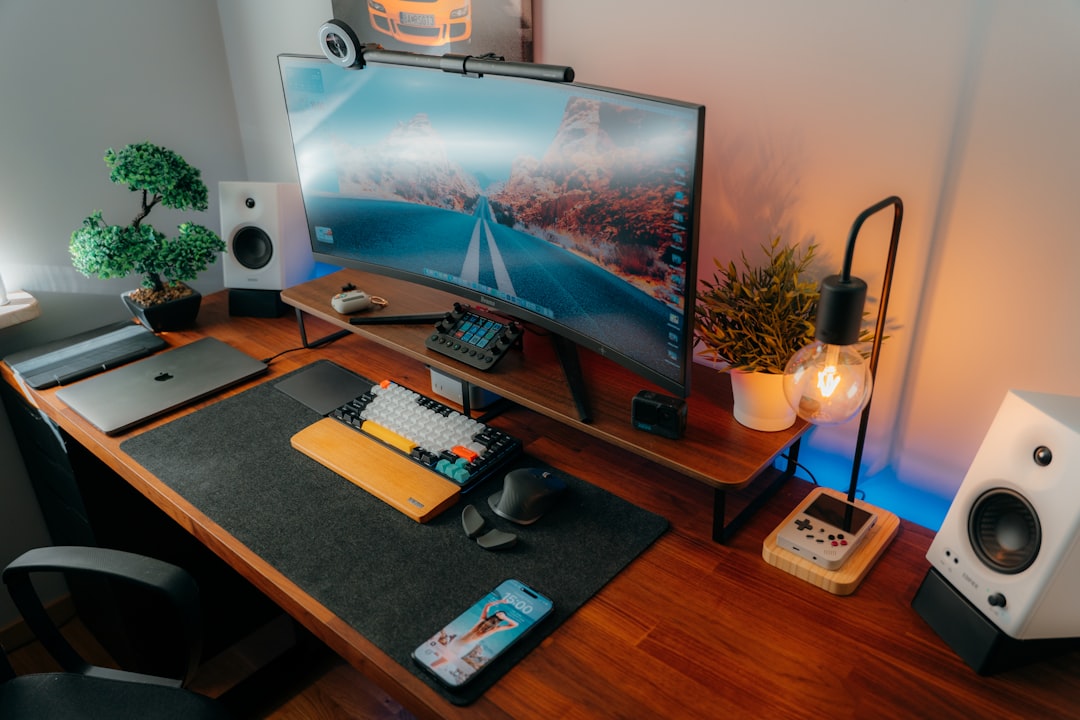
- Monitor arms free desk space and allow easy height/angle adjustments—choose them if you expect to reconfigure.
- Pick an ergonomic keyboard and mouse suited to your hand size and typing style; wired models avoid battery issues, wireless eliminates cord clutter—trade off accordingly.
- Use a laptop stand and external keyboard/mouse to keep the laptop screen at eye level and preserve posture.
Secure reliable connectivity: wired where it matters
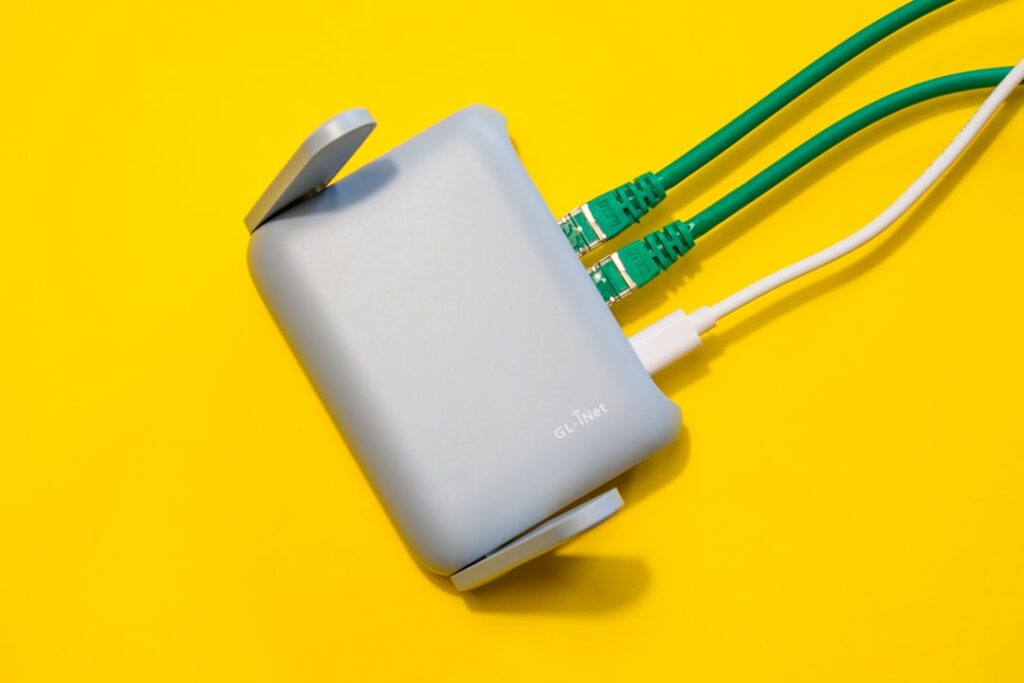
For predictable performance, run Ethernet to the device that needs it most: desktop, docking station, or a media hub. Use Wi‑Fi 5 or 6 routers placed so the office gets a strong signal; if signal strength is weak, add a mesh node or a wired access point.
If you rely on video calls, connect your webcam or conferencing laptop to Ethernet to avoid pauses and jitter. For creative work that moves large files, a wired NAS or direct Ethernet to a backup drive speeds transfers.
Power and ports: consolidate with one dependable hub
Most desks need multiple AC outlets, USB-A/C charging and surge protection. A multi-outlet power strip with built-in USB ports keeps charging local and reduces adapters. Place it under the desk or behind the monitor cluster so everything plugs into one place.
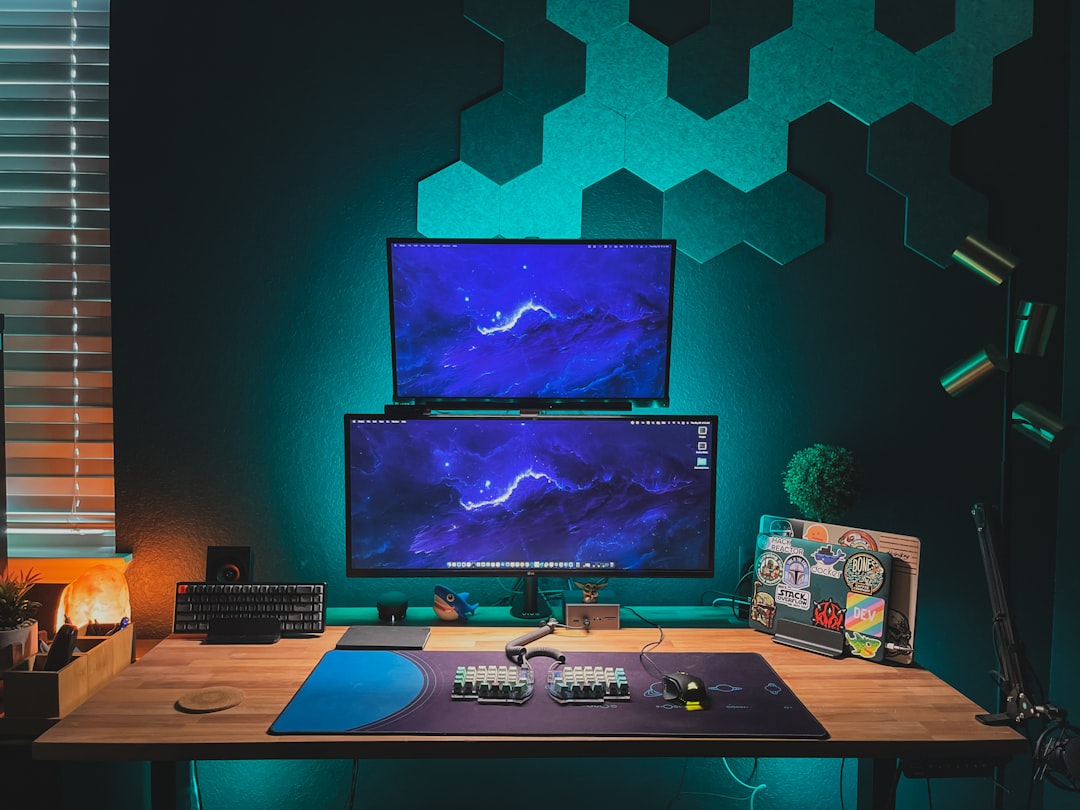
Use a USB-C docking station if you frequently dock a laptop: it centralizes power, display, Ethernet and USB peripherals into a single cable. That’s especially helpful if you sit/stand or switch between workspaces.
[h2]Tidy cables so they stay organized and serviceableGood cable management reduces distractions and makes troubleshooting faster. Group power and data cables separately to minimize interference and label both ends of long runs. Use a cable tray or raceway under the desk and Velcro straps for bundles; leave a small service loop so you can change a device without re-routing everything.
Lighting and camera setup for clear video meetings
Position your main light source in front of you or slightly to the side to avoid backlighting. An adjustable task lamp with color temperature control helps—set it to neutral white for natural skin tones on camera. For consistent video, place the webcam at eye level; use a small soft-diffused LED if room lighting is uneven.
Sound: manage both input and room acoustics
A headset with a noise-cancelling mic solves noisy environments. If you prefer speakers, add a directional microphone or place soft materials (rug, curtains, bookshelf) to reduce echo. Test audio levels before important calls and keep a quick mute shortcut handy.
Security and backups you can forget but shouldn’t
Use a password manager and enable device encryption. For backups, favor an automated cloud sync plus a local backup to an external drive or NAS. If your setup includes smart devices, segment them on a separate VLAN or guest Wi‑Fi to limit exposure to your main workstation.
Troubleshooting common problems and quick fixes
- Intermittent Wi‑Fi: switch to a wired connection or move a mesh node closer; check router firmware.
- Noisy or slowed laptop: use a docking station and an external monitor to reduce laptop heat and extend lifespan.
- Peripherals not recognized: try a powered USB hub or connect directly to the docking station’s upstream port; replace a suspect cable.
- Cluttered desk despite planning: detach non-essential devices for a week; add one back only if used daily.
Adaptations for common constraints
Small space: choose a vertical monitor setup and wall-mount shelving for the router and docking station. Limited budget: prioritize network and power first, then upgrade monitors and input devices later. Temporary workspace: use a compact USB-C dock and a single good monitor so you can pack quickly.
- Map device locations and run critical Ethernet where possible.
- Choose one central power strip or docking hub with enough outlets/USB ports.
- Mount monitors at eye level with a monitor arm or stand.
- Create an under-desk cable route and label long cables.
- Set up task lighting facing you and place the webcam at eye height.
- Automate backups and enable strong device security.
Build a dependable home office by solving connectivity and power first, then arrange displays and inputs for comfort, and finish with cable management and lighting. One good power hub or docking station simplifies everyday use and future reconfiguration.
Do I need Ethernet if my Wi‑Fi seems fine?
Not always, but Ethernet gives consistent latency and bandwidth for video calls and large file transfers; run it to at least one central device or the docking station if possible.
Is a docking station worth the cost?
Yes if you frequently connect multiple peripherals or switch between sitting and standing; a dock turns many cables into a single, quick connection.
Should I pick wired or wireless peripherals?
Wired avoids battery and pairing issues; wireless reduces clutter. Choose wired for latency-sensitive tasks (gaming, audio) and wireless for cleaner desks or mobile workflows.
How can I reduce echo in conference calls?
Add soft surfaces (rug, curtains), use a headset or directional mic, and position speakers away from the mic to prevent feedback.
Internal resources to help: see our guides on monitor buying, choosing tech without overspending, and common mistakes when buying tech online for research, specs comparisons, and safe shopping tips.